
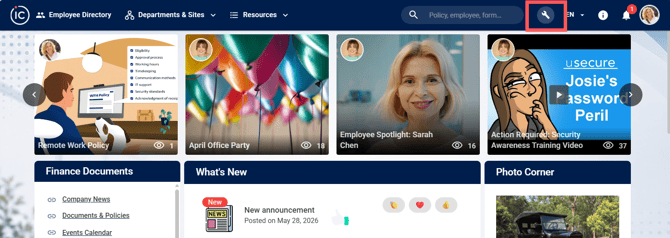
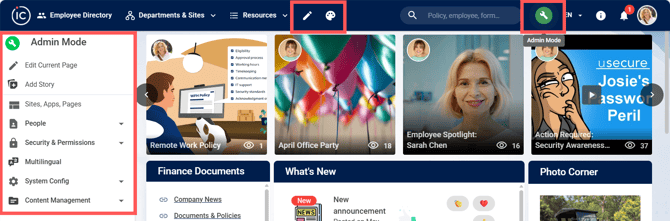
As an intranet Super Admin or Admin, click the Admin Mode wrench icon in the top toolbar. Once you open Admin Mode, the wrench will turn green. This will open the navigation panel on the left-hand side, where most admin options are available. In the top toolbar, you'll see buttons that will allow you to edit the global navigation and the global theme of the site.
-
Admin panel will display on the left hand side
-
The Pencil icon in the top toolbar will let you to edit the Global Navigation
- The Color Palette icon in the top toolbar will open up the Theme Builder
For details on how to use the Theme Builder, click here.
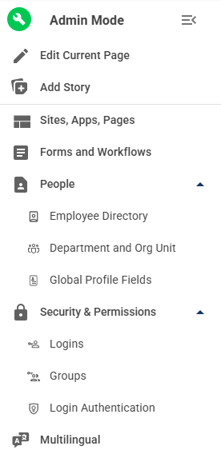
Full expanded Admin Mode panel:
A short summary of each section from the Admin Mode panel:
- Edit Current Page – Edit the page you are currently viewing to add or edit widgets and content
- Add Story – Add or edit Storyboard content
- Sites, Apps, Pages – Manage site structure, apps, and pages
- Forms & Workflows – Manage, edit, build your Forms & Workflows
- People – Manage users, roles, and access
- Employee Directory
- Department and Org Unit
- Global Profile Fields
- Security & Permissions – Control security settings and access permissions
- Logins
- Groups
- Login Authentication
- Multilingual – Manage language settings and translations
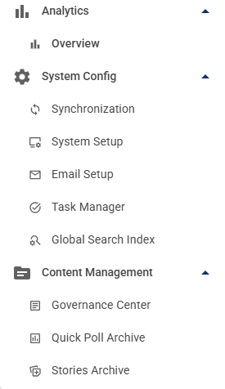
- Analytics – A centralized analytics dashboard to view key activity and engagement across your intranet
- System Config – Configure system-wide settings
- Synchronization
- System Setup
- Email Setup
- Task Manager
- Global Search Index
- Content Management – Manage and organize content across the platform
- Governance Center
- Quick Poll Archive
- Stories Archive
For a refresher on intranet user rights, review the Elevated User Rights section in the article here.