
Build a Workflow
Mode-first design, where you choose approval or notifications up front; the builder only shows the tools relevant to your choice.
No code required. Every capability is configured visually, no scripting, no developer involvement.
Learn how to build a Form here.
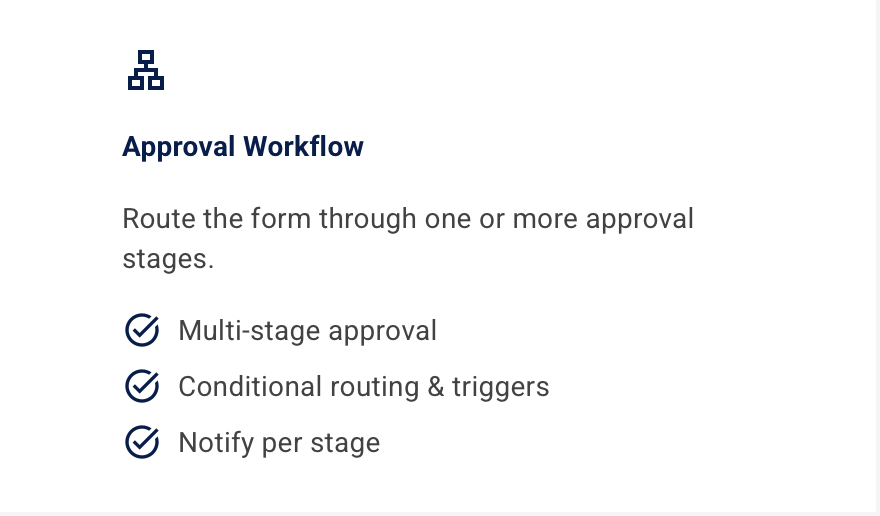
Approval Workflow
Route the form through one or more approval stages. Ideal for requests that need a sign-off.
Notifications Only
Skip approvals entirely and alert the right people whenever a form is submitted.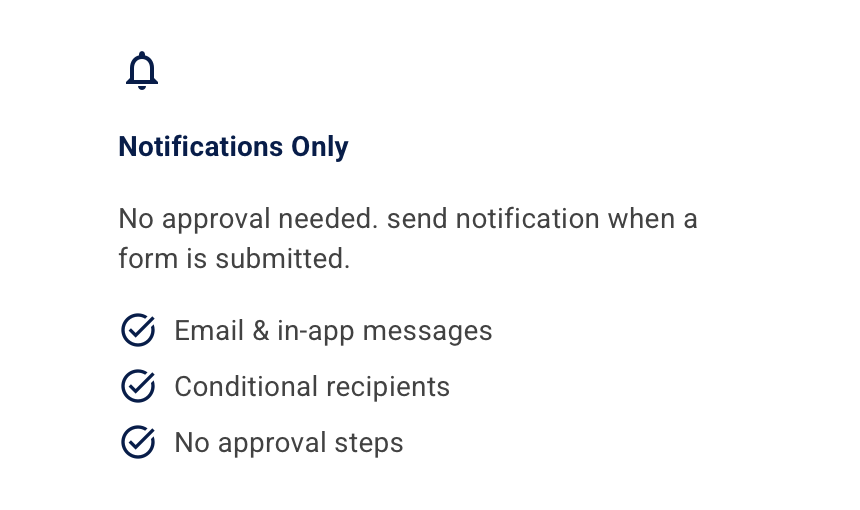
Stage Builder
Configure each approval stage with its own approvers, decision type, description, and trigger rules.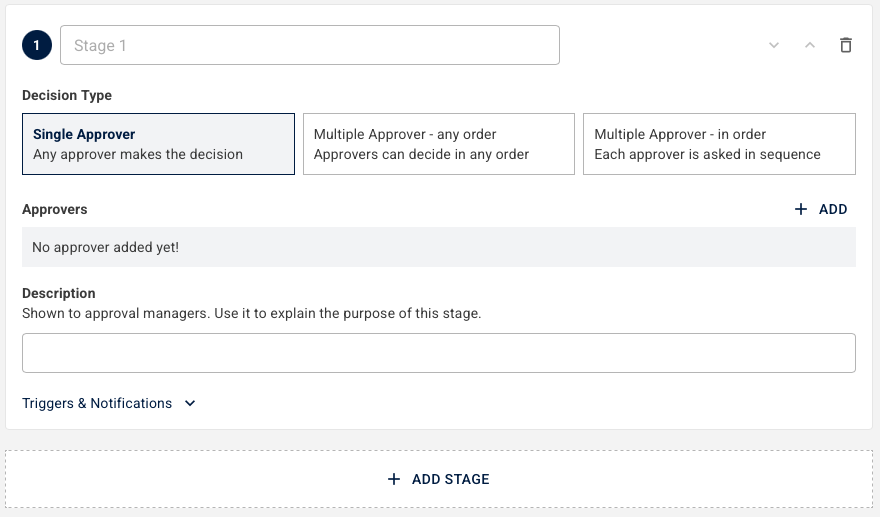
Single & Multiple Approvers
Assign one approver or require consensus from a group. Choose any-order or sequential sign-off.
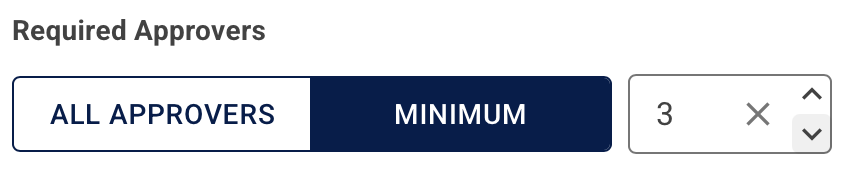
Required Approvers Threshold
Set whether all approvers must sign off or just a minimum number, useful for large approver groups.
Triggers & Conditions
Conditional Approvers
Assign a different approver based on field values, e.g. route to a senior manager above a spend threshold.
Field-based Rules
Set conditions on any form field using a wide range of operators.
- equals, does not equal, greater than, less than, contains, is empty, is not empty
Multi-logic
Combine multiple conditions with AND / OR logic to handle complex approval scenarios.
Applies Everywhere
Use the same condition logic in approvers, notifications, and triggers, no need to rebuild rules in different places.
Automated Stage Actions
Set rules that automatically advance or complete a stage, no manual sign-off needed.
-
Skip, Auto approve, Auto reject, Auto decline, Go to another stage
Notifications
Notify People
Send alerts to people inside or outside your organisation.
-
Specific user, Specific group, Direct manager, Manager's manager, External email
Delivery Channels
Choose how notifications are delivered per recipient.
-
Email, In-app, Both
Stage-based Alerts
Get notifications at the right moment, on submission, on completion, and on escalation.
Workflow History & Tracking
Overview Panel
A sidebar overview showing who's assigned and the workflow's current state at a glance.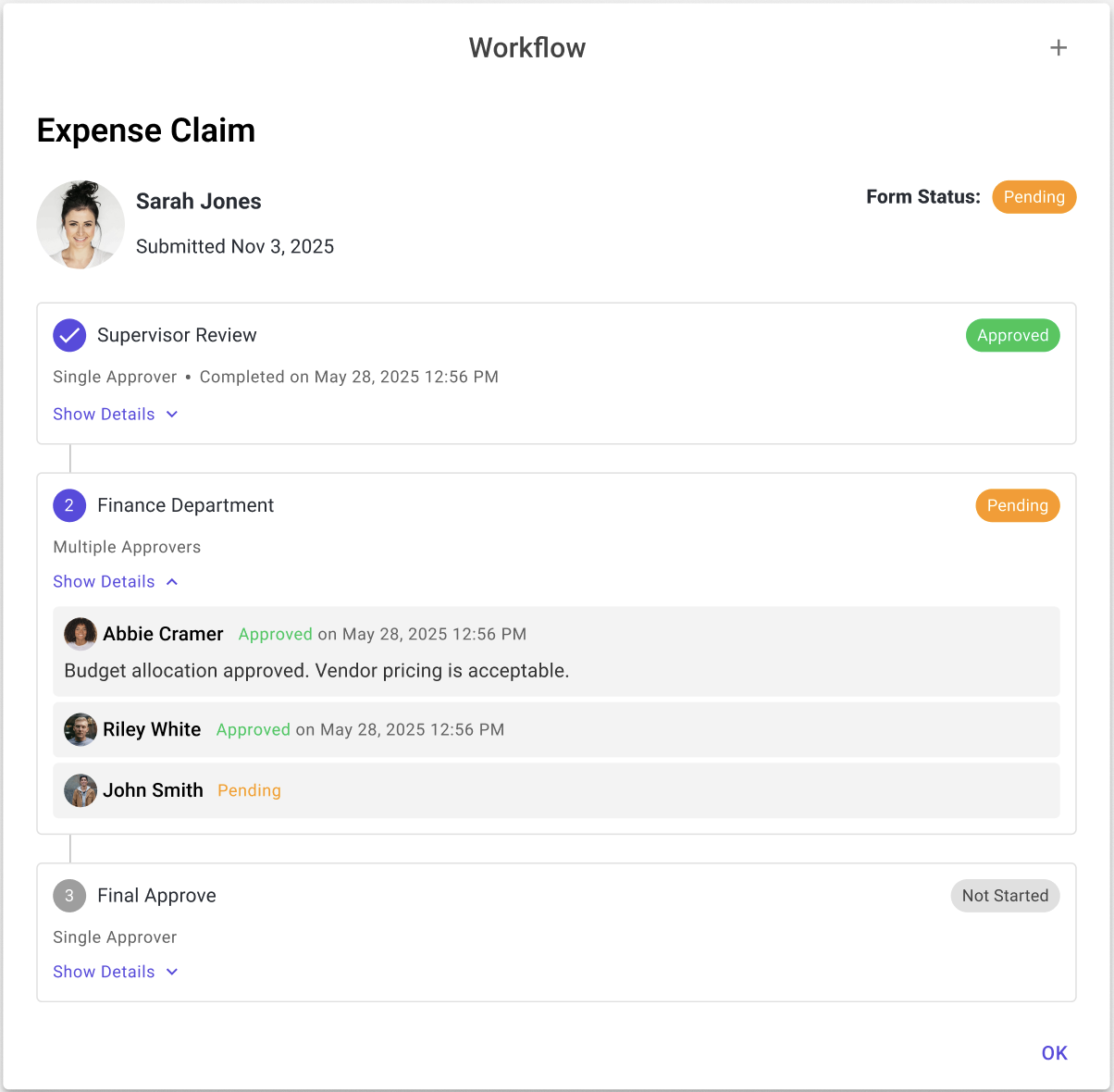
Stage Timeline
Every approval stage shown in order with step numbers, assignee names, and timestamps.
Status at Every Level
Track the status of every stage and individual approver action.
-
Approved, Pending, Not started, Declined, Rejected
Approver Detail
Expand any stage to see who's assigned, their decision, and any comments they left.
Resubmit Flow
When a form is declined, the submitter can update their answers and resubmit, the workflow restarts cleanly.
Admin Controls
Admins can manually advance, reassign, or close any stage, useful for covering absence or resolving stuck workflows.
Want to see the feature in action? Check out our webinar recording here.