
What is a collaborative form?
Most forms assume one person knows every answer. In reality, a request often needs input from several people, the requester, their manager, IT, Payroll, each of whom owns different information. A collaborative form splits the form into sections, and each section can be assigned to a different person or group. Everyone fills their own part; the submission stays in one place.
Collaboration happens at two points:
- Submission collaboration — assigned people fill their sections before the form is submitted into the workflow. They can work in any order, at the same time.
- Approver fill-ins — an approval stage can include a section the approver must complete before they can approve (for example, a budget code or provisioning details).
When to use a collaborative form
| Scenario | How collaboration helps |
|---|---|
| New hire onboarding | HR, IT, Payroll and Facilities each complete their own checklist in parallel before day one. |
| IT access requests | The system owner specifies the exact role and permission set before IT Security reviews it. |
| Employee offboarding | Manager handover, access removal and final pay run side by side instead of in an email chain. |
| Budget or purchase requests | Finance fills in cost centre and budget verification as part of their approval, not after it. |
See use cases here.
Setting Up Collaboration on a Form
- Open your form in the Form Builder and select a section.
- In the section's Properties panel, find Who can fill this section.
- Choose The submitter (default) or Assigned people. Sections with no assignment are always filled by the person who started the form — they never sit waiting for a volunteer.
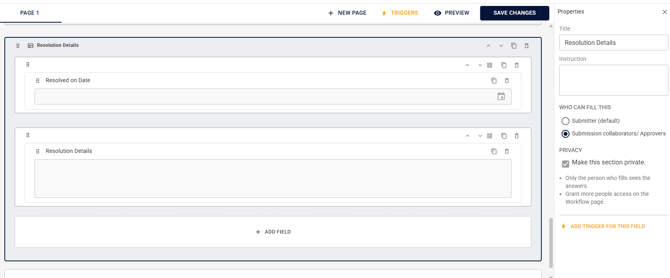
- For assigned sections, pick people or groups on the Workflow page under the submission collaboration stage. When a group is assigned, any member can claim and complete the section.
Click on + Add Collaborator Stage
Now you can set up your collaborators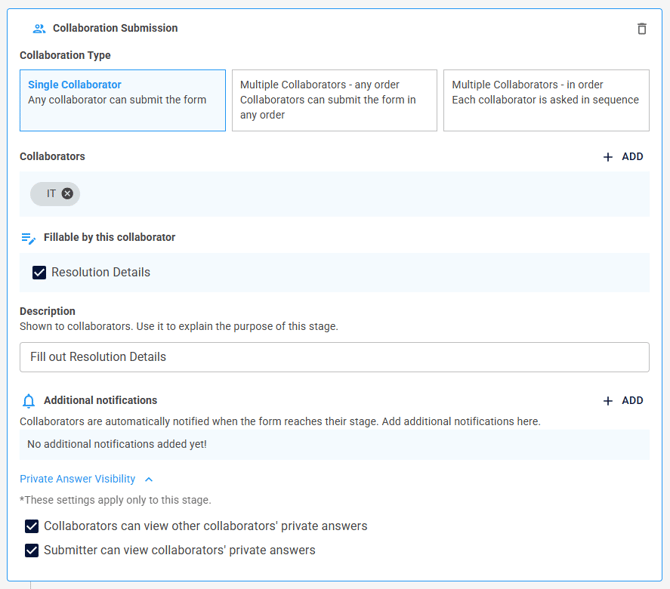
Select the Section you want fillable by collaborators
The moment any section is assigned to someone other than the submitter, the form becomes collaborative — a bar above the form shows every contributor and their progress.
Sections with a Group Assignment
The task appears in the whole group's queue. The first member to open the section claims it — others see it read-only with a note showing who's working on it. This prevents two people overwriting each other's answers.
Private Sections
Mark a section Private in its Properties panel when its answers shouldn't be visible to every contributor — background check results, salary details, security notes.
- By default, a private section is visible only to the person who fills it.
- Assignees always see the section they must fill — visibility rules restrict everyone else.
- Other contributors see that the section is complete, not what's in it.
You can widen visibility per workflow stage with three checkboxes:
- Approvers can view other approvers' private answers
- Approvers can view the submitter's private answers
- Submitter can view approvers' private answers

If a later approval stage needs data from a private section, grant that stage visibility explicitly — otherwise the approver will see the section as hidden.
Collaboration in the Workflow
The submission collaboration stage
The Workflow page starts with an optional submission collaboration stage. This is where you assign the people or groups who fill sections before submit. There is one submission collaboration stage per form; approval stages follow it.
Approver fill-ins
Any approval stage can include Fill in a section at this stage. Pick the section, and the approver must complete its required fields before the Approve button unlocks. Their section is flagged in the response so they can't miss it.
- On a stage where all must approve, you choose who completes the fill-in: a specific approver, or any one of them (first to claim it fills it; the rest still approve).
- An approver who declines after filling keeps their answers — they appear as prior-round data if the form is resubmitted.
What Fillers Experience
- Notification. Each assigned person gets an email and in-app alert: "Your part of [Form name] is ready to fill."

- A focused view. Opening the link shows the form with their section highlighted and editable. Sections they don't own are read-only (or hidden, if private).
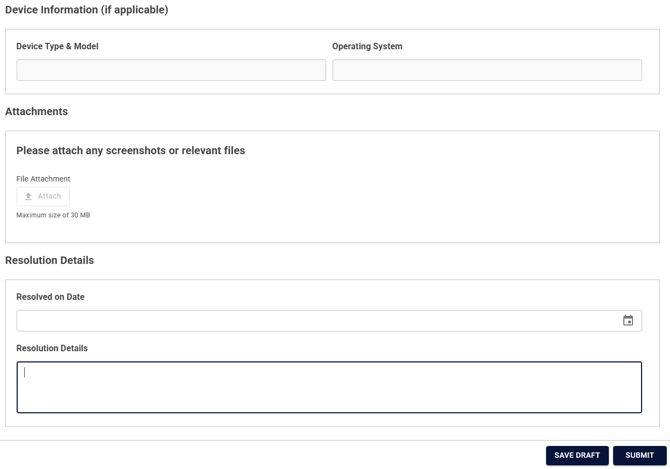
- Complete. They fill their required fields and mark the section complete. Completed sections can't be edited afterwards, only the form owner can send one back.
- Submit. Once every part is done, the main submitter submits the form into the workflow.
Tracking and Reminders
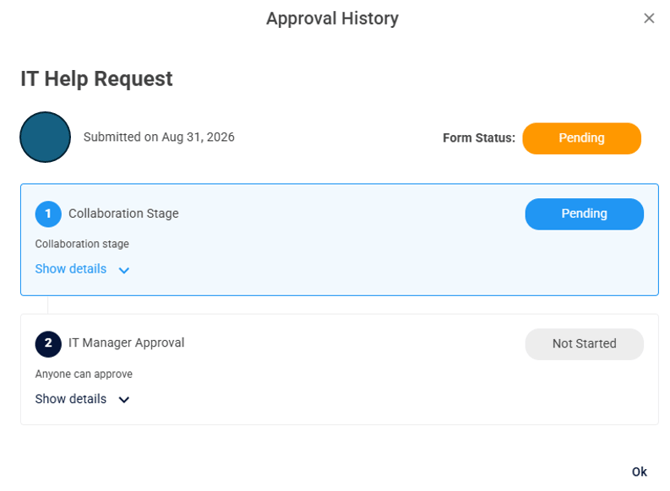
- The approval history on the submission shows each contributor's status: waiting, in progress, or complete.
Use Cases
Employee Offboarding Form
Download the form template here.
IT Help Request Form
Download the form template here.