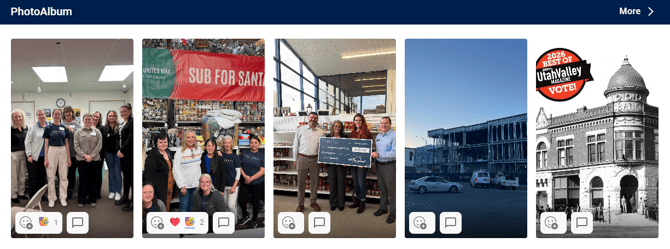
The Photo Gallery App allows you to organize photos by type, event, or any other grouping. Photos can be flipped through in a slideshow, and have titles and descriptions added.
Build Your Photo Gallery
Start by following the process to add an App to a site.

Once you have the App in place, click on the three columns on the App Card to explore available customizations. To open the App, click 'Go to App'
You can either upload new contents directly or create a list of folders to group new contents.
To add new content, click + New Media
To create new sub folder, click + New Folder > Add new content to selected folder.
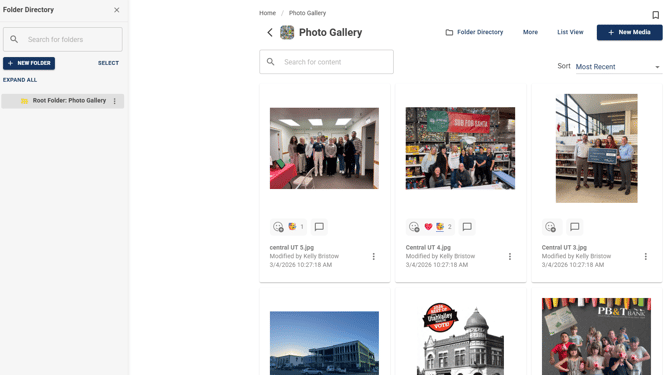
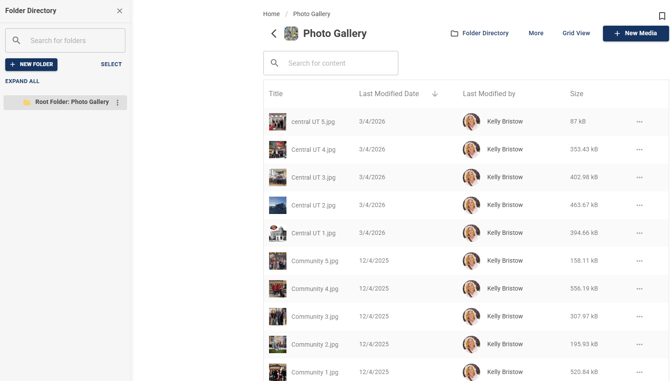
View Options
Grid View
List View
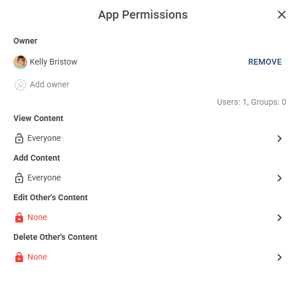
Add, Edit & Delete App Permissions
Edit 'View Content', Add 'Content', Edit 'Other's Content' & Delete 'Other's Content'
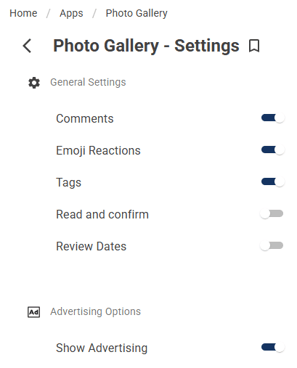
App Settings
Toggle Comments, Emojis, Advertising Options
Export App Template
Customized App template can be exported and imported in a different site
To import: Open Site Card > Apps > Create App from Template > Import Template > Selected downloaded template to import
Promote Items
Ensure Advertising Options has been turned on in App Settings.
Upload a photo > 3 dot menu on the photo you just uploaded > click Details > Promote
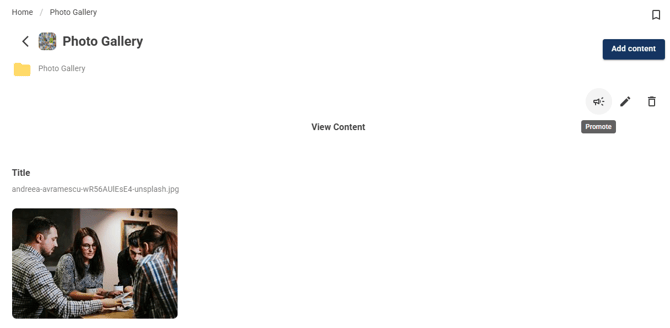
Then the Promote window will be displayed.
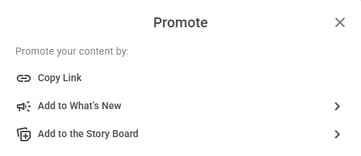
To see details on the What's New feed widget, click here. To see details on the Story Board, click here.
Display the Photo Gallery App in a Widget
Use the App Feed widget to add the app to a widget pageAdd Widget > App Feed > Select Source App
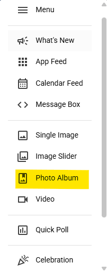 >
> 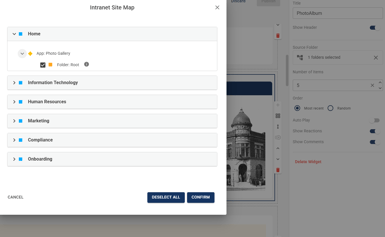 >
>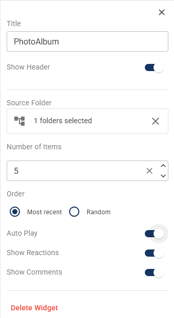
Photo Gallery Widget Display
Once the gallery is displayed in widget, users can interact directly with the content with emoji reactions and comments.