Build Your Events Calendar
Start by following the process to add an App to a site.

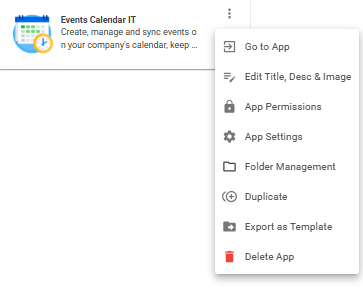
Once you have the App in place, click on the three columns on the App Card to explore available customizations. To open the App, click 'Go to App'
To set up Microsoft Calendar sync, refer to this step-by-step guide.
Default Events Calendar Layout
The Events Calendar comes with a standard layout with a few customization options available.
Click Manage Categories to create and color code a new category group

Select Name of Category from drop down list and start adding new events
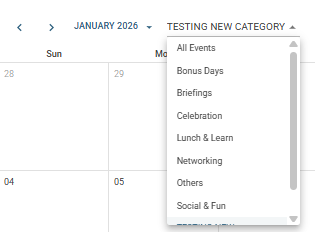
To view all events, change category to 'ALL EVENTS'
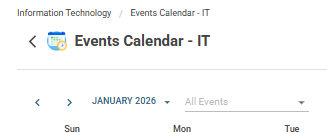
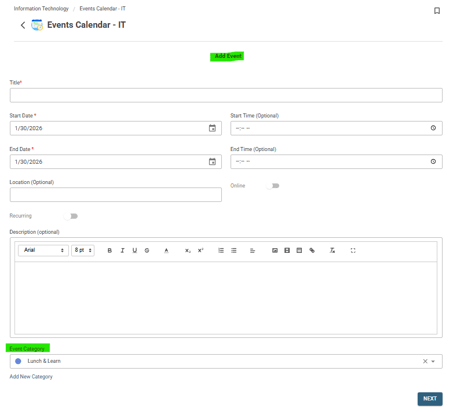
To add a new event, click Add Event, then enter the event details using the customization options below. You can also select a different category before publishing. You can also set recurring events.
Add, Edit & Delete App Permissions
Edit 'View Content', Add Content, Edit 'Other's Content' & Delete 'Other's Content'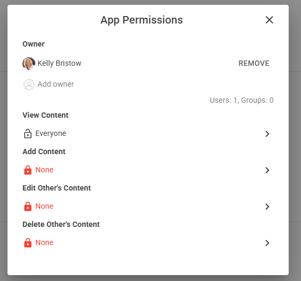
App Settings
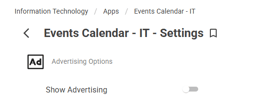
Export App Template
Customized App template can be exported and imported in a different site
To import: Open Site Card > Apps > Create App from Template > Import Template > Selected downloaded template to import
Promote Items
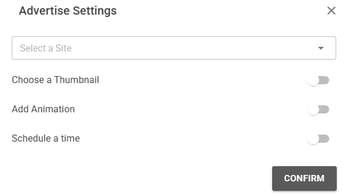
Create New content, click publish and customize advertising pop up.
 >
> 
To see details on the What's New feed widget, click here. To see details on the Story Board, click here.
Display the Events Calendar app in a Widget
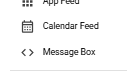
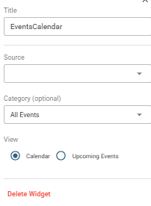
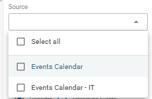
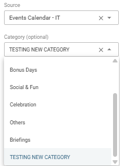
Use Calendar feed widget to add the Events Calendar application to your homepageAdd Widget > Calendar feed > Select Source App > Select Category
 >
>  >
>  >
> 
Suggestion Box Widget Display
-
Title can be customized
-
You can also change category previewed on the calendar view
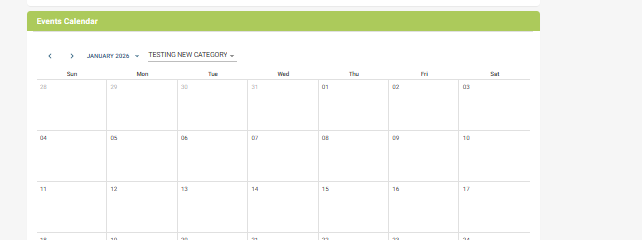
Calendar View:
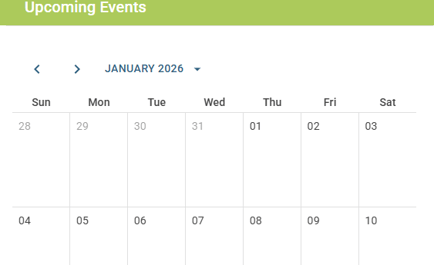
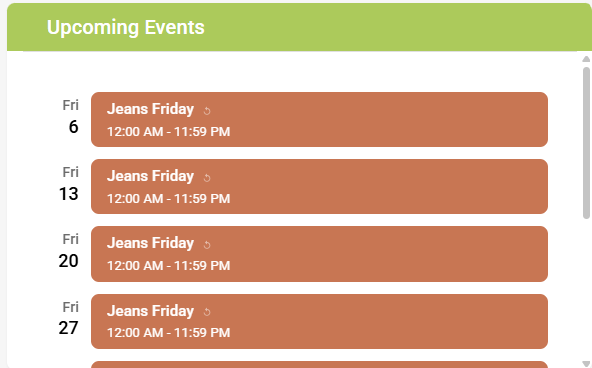
Upcoming Events View: (List View)