Build Your Buy and Sell
Start by following the process to add an App to a site.
Once you have the App in place, on the App Card change the title and/or description if you want to customize it for your intranet. You might want to name it something that more closely reflects its purpose.
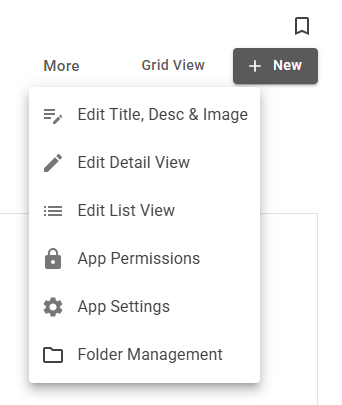
Once you have the App in place, click on the three columns on the App Card to explore available customizations. To open the App, click 'Go to App'
You can either upload new contents directly or create a list of folders to group new contents.
To add new content, click New > Item
To create new sub folder, click New > Folder > Add new content to selected folder.
Default Buy and Sell Layout
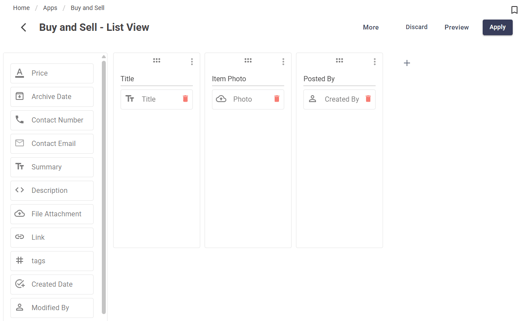
The Buy and Sell App comes with a standard 'List View' & 'Detail View' layout for its default home page. All layouts can be customized.
Detail View
Choose which field to include. Drag and drop the field to reposition it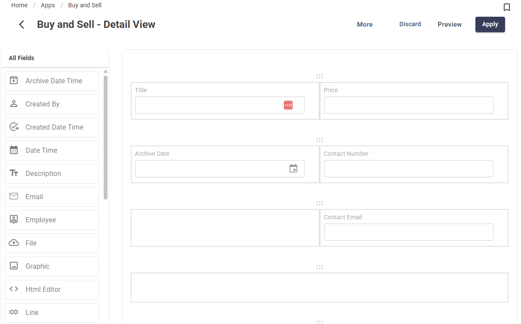
List View
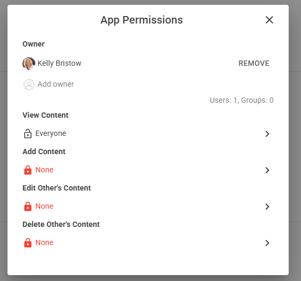
Add, Edit & Delete App Permissions
App Settings
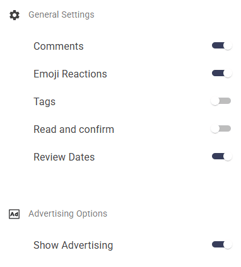
Toggle comments, emojis, Read & Confirm and Advertising Options
Export App Template
To import: Open Site Card > Apps > Create App from Template > Import Template > Selected downloaded template to import
Promote items
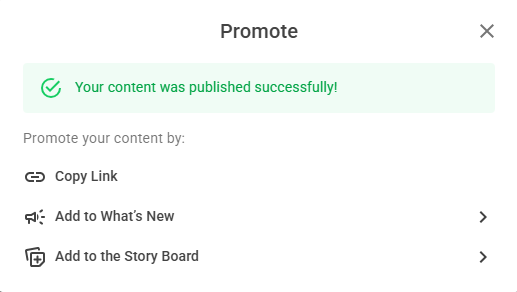
Create New content, click publish and the Promote window will be displayed.
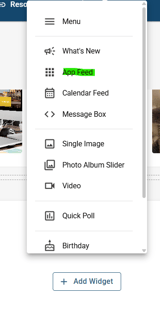
Display the Buy and Sell app in a Widget
 >
> 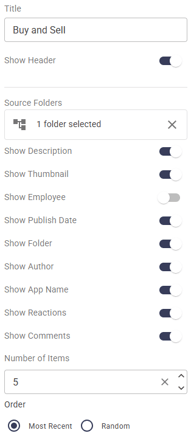
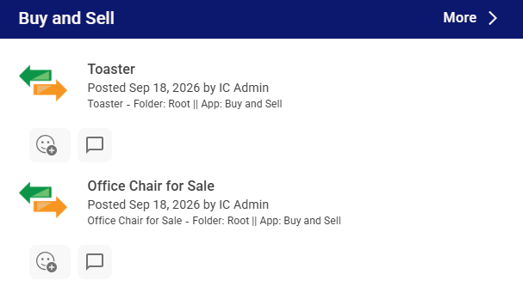
Buy and Sell Widget Display