Widget Categories:
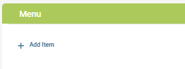
Menu: Provide a repository of links
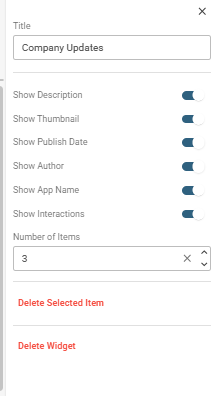
What's New: Display advertised/promoted content
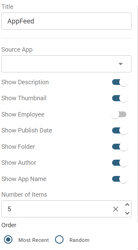
App Feed:
The Application Feed widget displays recently published content from one or more similar applications based on publish date (i.e. newest to oldest). Items don't have to be advertised to appear in this widget, they just have to be published (i.e. saved). Think of it as a window into a specific type of content which automatically reveals information. Select "Source App" drop down to choose Application.
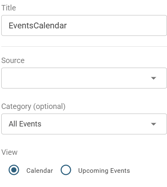
Calendar Feed: Display events from the calendar application
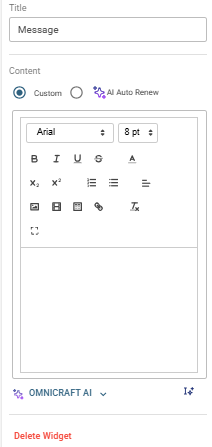
Message Box: The Message Box widget is a versatile widget with a full html editor which can be used for displaying all kinds of content on your page, including text, links, images, tables, or custom code.
Single Image:
The Image widget is used for a custom image of your choice. Use this widget to display a solo image such as a logo, to just add graphic interest to a page or to link to a website.
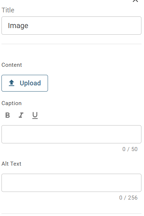
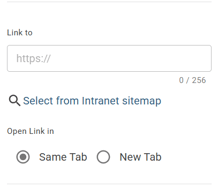
Photo Album Slider:
The Image Slider widget displays a series of large-scale images that rotate or can be manually navigated. This widget is ideal for banners, hero images, and promotional content. Users can navigate between images by clicking the navigation arrows.
Image Upload: Upload up to 10 images maximum. Images are displayed as expandable panels that can be reordered by dragging.
Video:
Quick Poll:
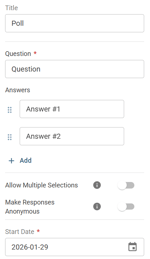
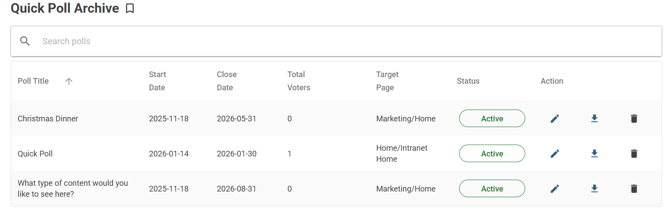
One-question quick polls can be created, edited, or republished using this widget. Use it for fun surveys (e.g. favorite holiday dessert) or to help choose a company-wide event. Add instructions and as many answer options as you like, or choose whether to allow anonymous users to reply. Pick the date and time for your Quick Poll to start and end its display to users. Customize when to display, and how long it displays. Once responses have been received, use the Quick Polls Properties box to view all results, download to Excel, edit, or delete.
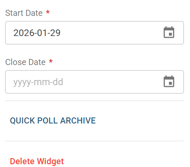
Quick poll archive to view previous polls, download results and delete
Birthday, Anniversary:
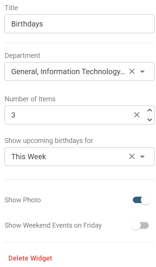
Birthday
The Birthday widget shows employee birthdays, with the options of displaying staff from a specific department and/or location, days in advance, and number of birthdays.
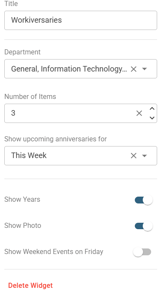
Anniversary
The Anniversary widget shows employees who have upcoming anniversaries, which can include the number of years they’ve been with the organization
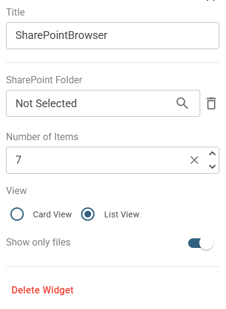
SharePoint: Integrated folders from your authorized SharePoint environment
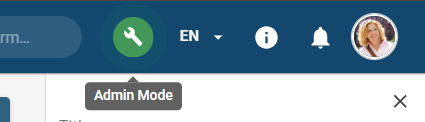
1. Click on Admin Mode
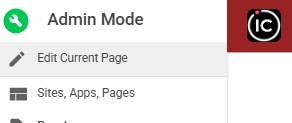
2. Click Edit Current Page from left admin panel
3. Add Section to select Widget layout
Widgets are arranged in row-based frames within the main page area. Each row supports predefined layout configurations that allow for one, two, or three widgets.
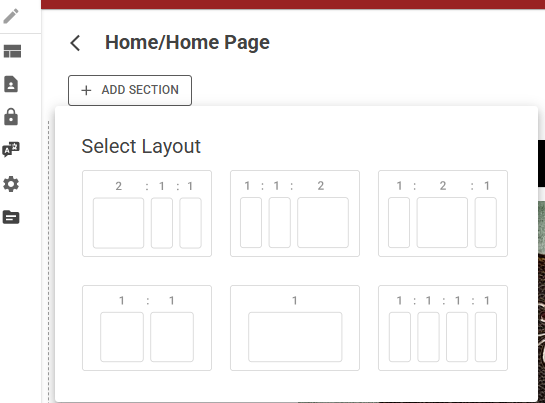
You can move a widget on a page anywhere that a frame exists.
You can rearrange the order of rows, add new rows above or below an existing row, or delete a row.
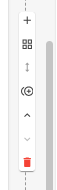 Customization panel to Add, select layout, resize, move and delete widget
4. Click Add Widget and select widget type
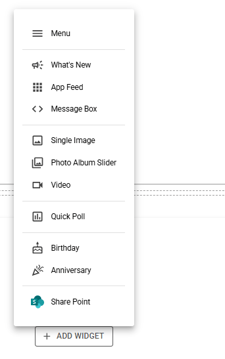
5. Widget customization available on the right panel