
Skip to content
  • There are no suggestions because the search field is empty.

IC 3.0 Global Navigation

Editing top navigation


1. Go to admin mode.

Go to admin mode.
 

2. On top navigation bar, click on edit icon.

On top navigation bar, click on edit icon.

3. You have to up to 7 main menu items and three levels in total. We suggest you map out your top navigation bar ahead.

You have to up to 7 main (Level 1) menu items and three levels in total. We suggest you to map out your top navigation bar ahead. Use "More" for relatively unimportant information.

4. You can drag and drop the items within each level to change order.

You can drag and drop the items within each level to change order.
 

5. To add new navigation item, click on the level where you want to add item, and click (+) add button. Here is an example of adding a Level 1 item.

To add new navigation item, click on the level where you want to add item, and click add button. Here is an example of adding a Level 1 item.


6. On the right panel that pops up, you can edit name, link, sub item, icon, etc.

On the right panel that pops up, you can edit name, link, sub item, icon, etc.

7. To add sub Item, click on the radio button "sub item".

To add sub Item, click on the radio button "sub item".

8. You will see a drop down with "New Sub Item". Click on it and add details on the right panel.

You will see a drop down with "New Sub Item". Click on it and add details on the right panel.

9. You can add descriptions to menu items in the Description box.
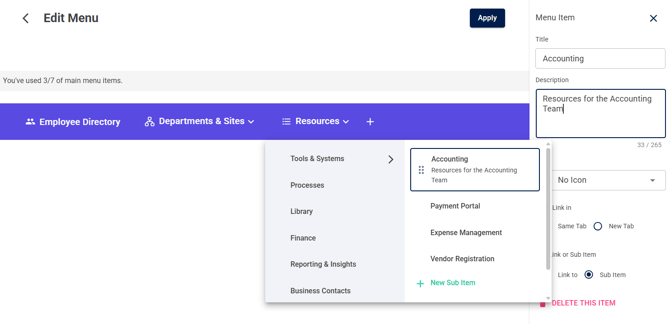
10. To link content from your intranet, utilize the Site Map to select. 
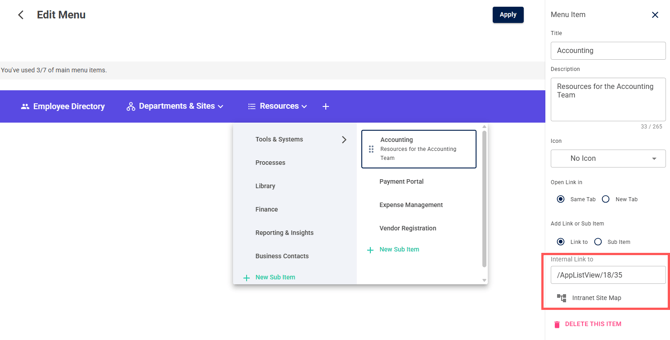
11. When everything is done, click on APPLY to save changes.

When everything is done, click on APPLY. We do not save any edit without applying for now.
 

Learn how to use the Site Map for quick menu building.