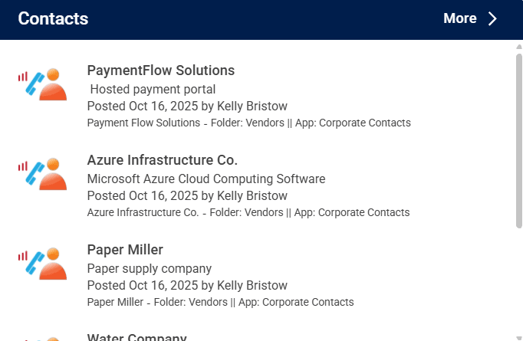
Putting in place a Contacts App allows for all staff to access an accurate list of contacts specific to key functions of the organization, such as stationery suppliers, approved hotels, or software vendors.
Build Your Contacts
Start by following the process to add an App to a site.
Once you have the App in place, on the App Card change the title and/or description if you want to customize it for your intranet. You might want to name it something that more closely reflects its purpose.
Once you have the App in place, click on the three columns on the App Card to explore available customizations. To open the App, click 'Go to App'
You can either upload new contents directly or create a list of folders to group new contents.
To add new content, click New > Item
To create new sub folder, click New > Folder > Add new content to selected folder.
Default Contacts Layout
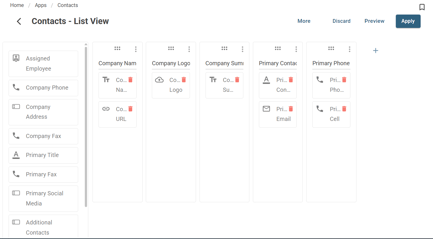
The Contact App comes with a standard 'List View' & 'Detail View' layout for its default home page. All layouts can be customized.
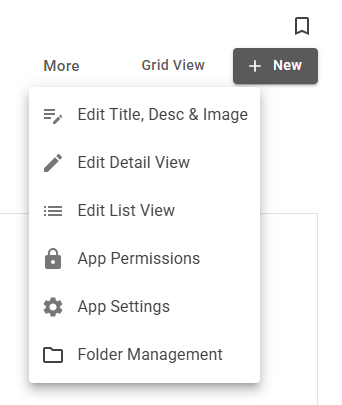
Detail View
Choose which field to include. Drag and drop the field to reposition it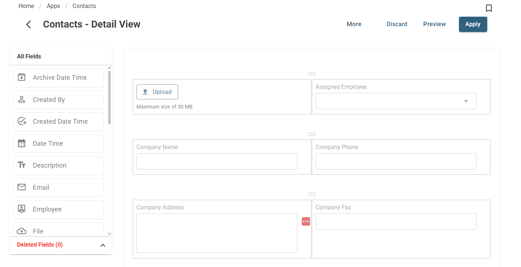
List View
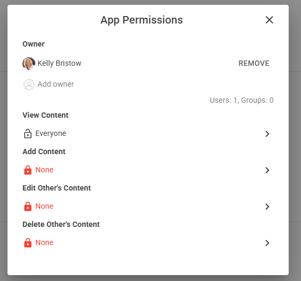
Add, Edit & Delete App Permissions
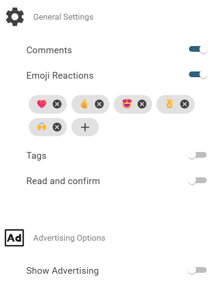
App Settings
Toggle comments, emojis, Read & Confirm and Advertising Options
Export App Template
To import: Open Site Card > Apps > Create App from Template > Import Template > Selected downloaded template to import
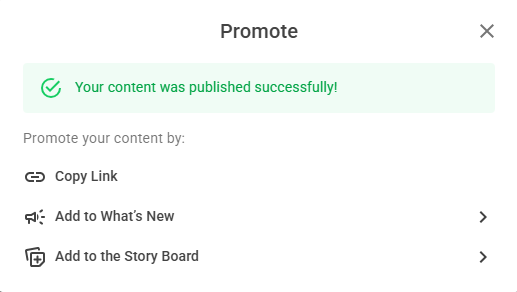
Promote items
Create New content, click publish and the Promote window will be displayed.
Display the Contacts app in a Widget
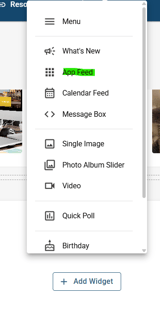 >
> 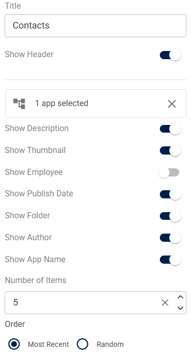
Contacts Widget Display