
Build Your Events Calendar
Start by following the process to add an App to a site.

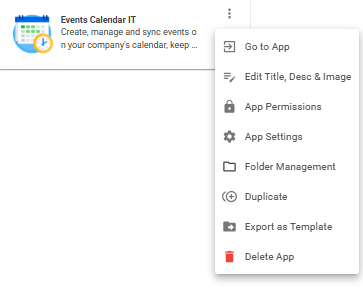
Once you have the App in place, click on the three columns on the App Card to explore available customizations. To open the App, click 'Go to App'
Default Events Calendar Layout
The Events Calendar comes with a standard layout with a few customization options available.
Click Manage Categories to create and color code a new category group

Select Name of Category from drop down list and start adding new events
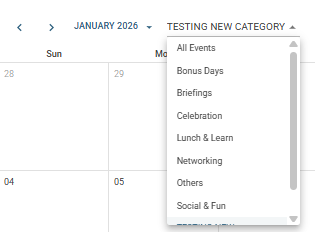
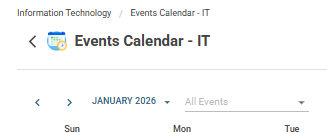
To view all events, change category to 'ALL EVENTS'
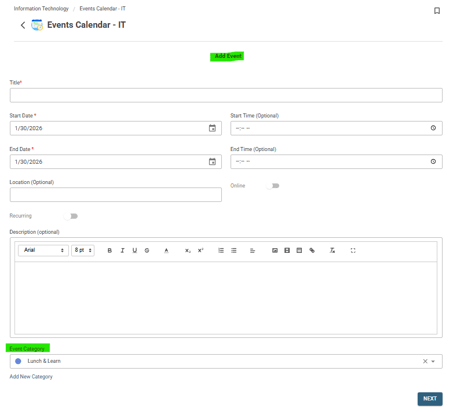
To add a new event, click Add Event, then enter the event details using the customization options below. You can also select a different category before publishing.
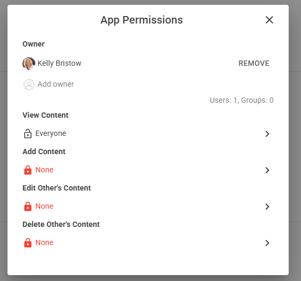
- Add, Edit & Delete App Permissions: Edit 'View Content', Add Content, Edit 'Other's Content' & Delete 'Other's Content'
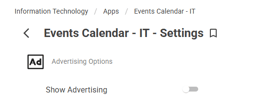
- App Settings: Toggle comments, emojis, Read & Confirm and Advertising Options
- Export App template: Customized App template can be exported and imported in a different site
To import: Open Site Card > Apps > Create App from Template > Import Template > Selected downloaded template to import
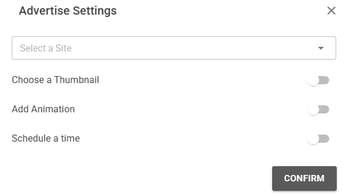
- Advertise items - Ensure Advertising Options has been turned on.
Create New content, click publish and customize advertising pop up. >
> 
- Use Calendar feed widget to add the Events Calendar application to your homepage
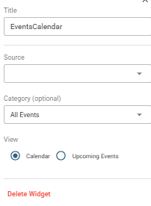
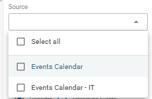
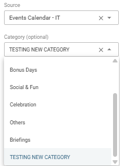
Add Widget > Calendar feed > Select Source App > Select Category
 >
>  >
>  >
> 
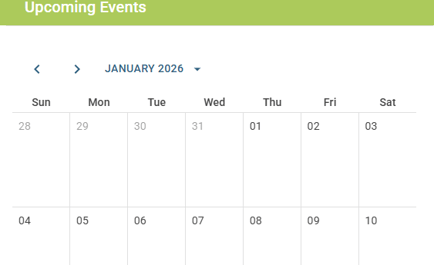
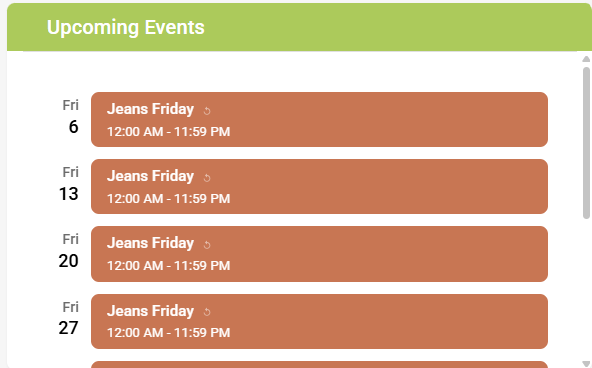
Events Calendar Widget Display: (Title can be customized), You can also change category previewed on the calendar view
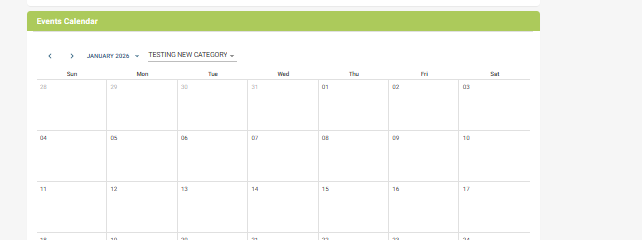
Calendar View:
Upcoming Events View: (List View)
These are just a few of the many ways you can customize the Events application so it works for your intranet.