
1. Azure (Entra ID) Sync Setup
Follow these steps if you want to sync users from Azure/Entra ID.
1.1 Create the Azure Application Registration
- Sign in to the Azure Admin Portal: https://portal.azure.com/
- Go to App registrations → New registration.
- Enter a name (e.g., IC3 Azure Sync).
- Under Redirect URI, choose Web.
- Enter your redirect URI.
Example for IC3:- Site:
https://IC3.intranetconnections.com - Redirect URI:
https://IC3-api.intranetconnections.com/signin-oidc
- Site:
- Select Register.
After registering, Azure will display Client ID and Tenant ID—save these for later.
1.2 Create Client Secret
- Open Certificates & Secrets.
- Select + New Client Secret.
- Enter a description → choose 730 days (24 months) → click Add.
- Copy its Value immediately (you cannot retrieve it later).
1.3 Add Microsoft Graph API Permissions
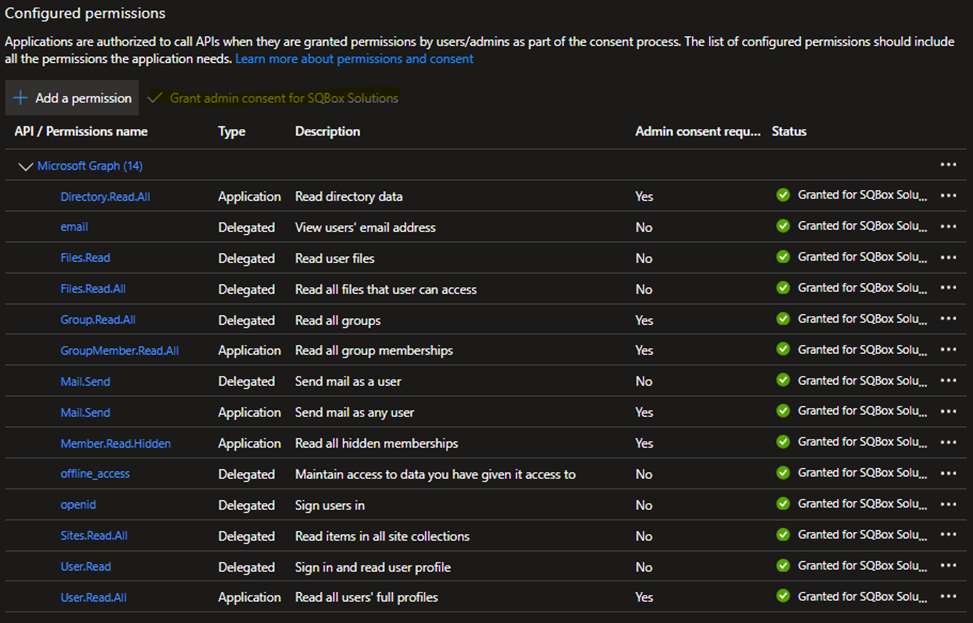
Go to API Permissions → + Add a permission → Microsoft Graph and add all required permissions.
Then click Grant admin consent to apply them.
Required Permissions:
1.4 Configure Azure Sync in IC3
- Log in to your IC 3.0 site.
- Go to Admin Mode → Security & Permissions → Login Authentication.
- Edit Azure Single Sign-On.
- Enable Azure SSO as a login provider.
- Enter your:
- Client ID
- Tenant ID
- Client Secret
- Select Test Connection → Confirm.
1.5 Finalize Azure User Sync
- Click + Manage Sync.
- Select Add Connection → choose Azure.
- Under Sync from Group, select the Azure AD group you want to sync with.
- Click Save.
- Go to System Config → Task Manager.
- Run Azure User Sync Task.
- Restart IIS to apply changes.
- Test Azure SSO login.
2. LDAP Sync Setup
Follow these steps if your organization syncs users through Windows LDAP instead of Azure.
2.1 Configure LDAP Authentication
- Log in to your IC 3.0 site.
- Go to Admin Mode → Security & Permissions → Login Authentication.
- Edit Windows Authentication.
- Enable Windows Authentication as a login provider.
- Fill required LDAP fields → select Test Connection.
2.2 Setup LDAP Sync
- Click + Manage Sync.
- Select Add Connection → choose Windows LDAP.
- Under Sync from Group*, click + Add Group and select the LDAP group.
- Map required fields → click Save.
2.3 Required IIS Configuration
- In IIS, go to Sites → select your IC3 site → click Authentication.
- Enable Windows Authentication.
- Repeat for SITE-API.
- Restart IIS.
2.4 Verify LDAP Sync
- Log back into IC3 → Admin Mode → Security & Permissions → Login.
- Wait for sync to finish (may take a few minutes).
- Log out and test a Windows Authentication login.
3. Email Notification (SMTP) Setup
3.1 Configure SMTP
Once your authentication (Azure or LDAP) is working:
- Go to Admin Mode → System Config → Email Setup → SMTP.
- Enter your SMTP server details.
- Click Save.
- Select Send Me Test Email > Note: Test emails only send when you are logged into your own user account.
Special Requirement for Azure Sync
- The sender email address must belong to a synced Entra ID user; otherwise, Azure will reject the message.
4. Summary
| Task | LDAP Sync | Azure Sync |
|---|---|---|
| Identity Provider | Windows Authentication | Azure AD / Entra ID |
| Setup Complexity | Low–Medium | Medium–High |
| Needed Info | LDAP path, domain, groups | App Registration, IDs, Secret, Permissions |
| IIS Changes Needed | Yes | Yes |
| Email Requirement | Any valid SMTP sender | Must be an Entra ID mailbox |