Visualize, Organize, Share: The New Storyboard
Steps to Add a Story
-
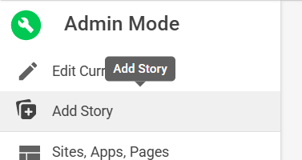
Click the Admin cog.
-
Hover over the left Admin Panel.
-
Select Add Story.
Storyboard Use Cases
Storyboards can be used in several ways, including:
-
Promoting intranet content that already appears in the What’s New feed but needs additional visibility.
-
Highlighting important announcements or updates that should remain visible for an extended period (“sticky” content).
-
Featuring external content, such as a specific tweet with a direct link.
-
Promoting video content with a play-in-place function.
-
Linking users directly to surveys or forms.
-
Showcasing content not included in the What’s New feed, which can only be promoted through the Storyboard.
Note: Storyboards cannot be previewed or tested unless they are currently displayed on the site.
Storyboard Appearance
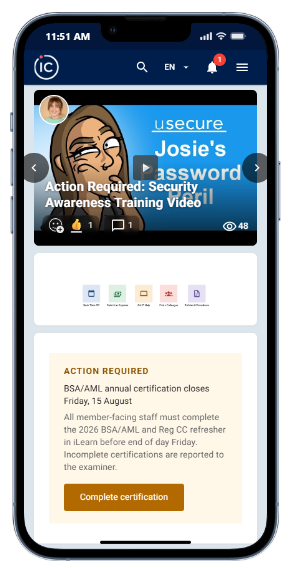
All users—including Admins—experience Storyboard content the same way when they land on a site homepage that includes a Storyboard.
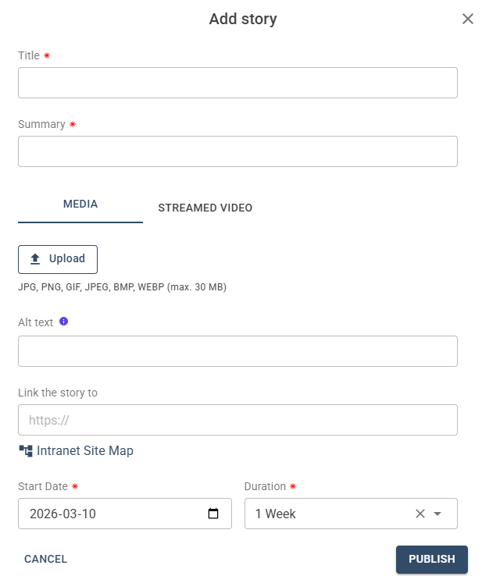
When creating a Story:
-
You can upload an image or video.
-
Link the Story to an external website or an Intranet site page.
-
Schedule the Story with a start date and duration so it appears automatically during the selected time.
Display:
-
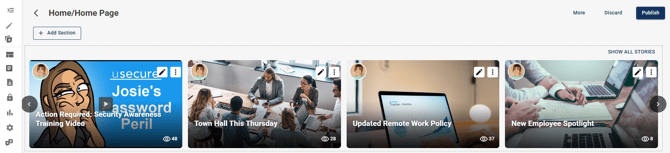
Up to four story cards appear at the top of the content page.
-
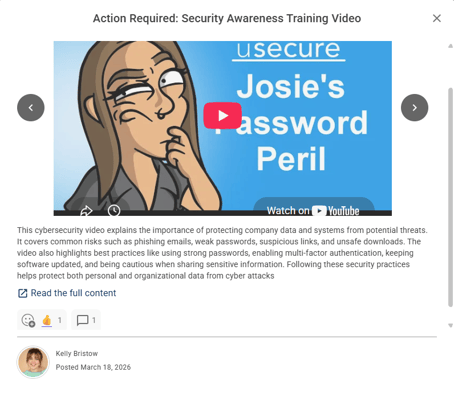
Users can click a Story to view more details by selecting “Read the full content.”
-
Additional stories can be accessed using left/right navigation arrows.
- Users can engage directly with Stories with Emoji Reactions and Comments

Editing or Deleting an Existing Story
-
Go to Admin Tool.
-
Select Edit Current Page.
-
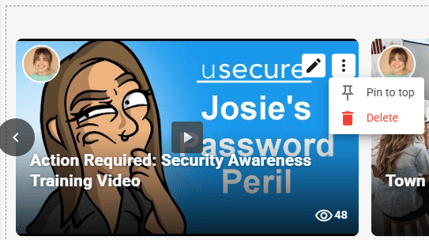
Click the pencil icon to edit.
-
Select the three dots (⋯) to delete an existing story card if needed.
Important Notes About Storyboards
-
For the best appearance, include multiple stories in a Storyboard.
-
Each site can have its own Storyboard.
-
Storyboards cannot be shared across different sites.
-
A Storyboard will not appear unless it contains at least one story.
-
A maximum of four stories are visible at a time on the homepage, but additional stories can be added and accessed via navigation arrows.
-
A Storyboard must be visible to all users or none (unless view security settings apply).
Storyboard Archive
Archived stories can be found here:
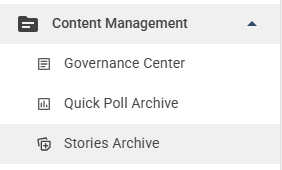
Admin Mode → Content Management