
In this article
Learn about applying Workflows here.
Accessing Forms
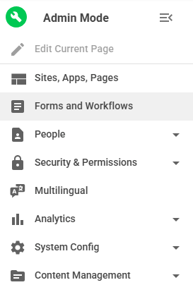
- Click on Admin mode
- Navigate to the left-hand side Admin panel
- Click Forms and Workflows
Organize Forms
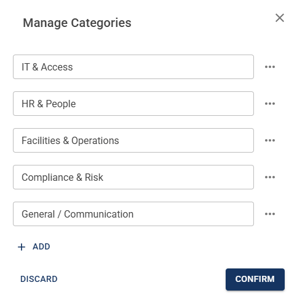
Categories can be used to group forms by type. For example, an HR Forms category can be used to house forms such as a New Employee Onboarding Form.
- Click on Manage Categories
Create a New Form
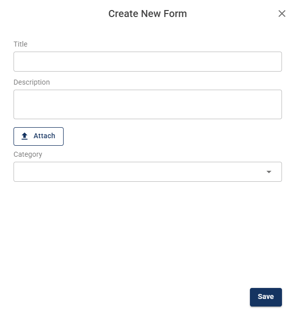
- Click on "+ Blank Form"
Guided Creation Flow
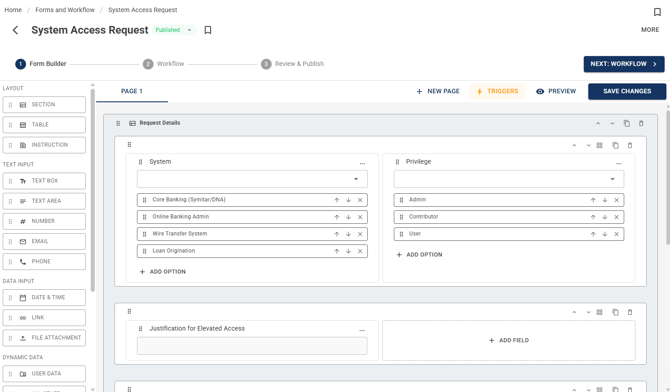
A three-step process walks you through every stage of building and publishing a form, so nothing gets missed.
Flexible Layout
Organise your form into logical groups using sections, rows, and columns to keep it easy to read and navigate.
Building a Form
- Add a Section
- Add a Field
Form Field Types
- Layout
- Table
- A dedicated table field lets submitters add rows dynamically at submission time, making it easy to capture repeating data like expense items or line entries.
- Instructions
- Table
- Text Input
- Text Box
- Text Area
- Number
- Phone
- Data Input
- Date & Time
- Link
- File Attachment
- Dynamic Data
- User Data
- All Staff
- Selection & Options
- Dropdown
- Radio Button
- Check Box
- Toggle
- Advanced
- Formula
- Automatically compute a value from other fields in the form , for example, multiplying quantity by unit cost to calculate a total. Referenced fields are shown as chips in the formula editor.
- Formula
Field Properties
Each field type has its own configurable properties so you can tailor exactly how it behaves.
Triggers & Conditional Logic
Show or hide fields and sections based on rules you define. Combine multiple conditions to build complex logic , for example, only show a manager approval field when the amount exceeds a threshold.
Preview before Publishing
See exactly how the form will appear to submitters before making it live, so you can catch layout or logic issues early.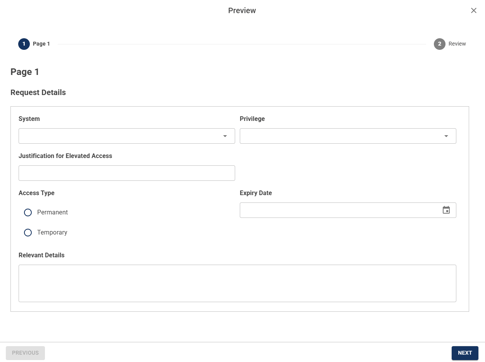
Triggers & Conditional Logic
Add as many triggers as you want. There's no limit , add multiple triggers per field to cover every scenario your form needs to handle.
Field-based Rules
Set conditions on any form field using a wide range of operators.
-
equals, does not equal, greater than, less than, contains, is empty, is not empty
Multi-logic
Combine multiple conditions with AND / OR logic to handle complex scenarios , like approval flows that depend on budget, role, and region all at once.
Stage Actions
Define what happens when conditions are met , show or hide any field or section to guide submitters through only what's relevant to them.
Centralised Trigger Manager
One place to see, edit, and manage every trigger across your entire form , with a clear view of which rules are attached to which field.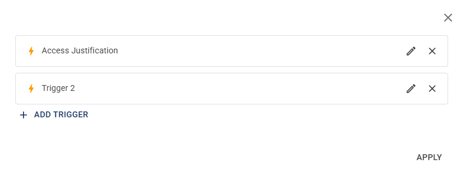
Settings & Publish
Publishing & Form Status
-
Draft & Publish Control
-
Build and test your form privately in Draft mode, then publish it with one click when it's ready. Take it offline any time without losing your work.
-
- Preview Before Publishing
- See exactly what your form looks like to respondents before it goes live , no surprises.
- See exactly what your form looks like to respondents before it goes live , no surprises.
- Save Without Publishing
- Make edits and save your progress at any time. Changes only go live when you choose to publish.
- Make edits and save your progress at any time. Changes only go live when you choose to publish.
- Make Form Offline
- Take your form offline instantly, making it inaccessible to respondents. Republish anytime to bring it back online.
Form Behaviour
- Anonymous Submissions
- Let people submit without logging in , great for surveys, feedback, or external audiences.
- Edit After Submission
- Allow respondents to return and update their answers after submitting.
- Submission Limits
- Cap how many times a form can be submitted , per day, week, month, or in total.
Submitting a Form
Submit a Form (The end-user experience)
-
Permission-based Access
-
Users only see and can submit forms they have been granted access to. Unpermissioned forms are not visible in their form directory.
-
- Submission Flow
- Users fill in the form fields and submit. Once submitted, the response is recorded and any configured workflow is triggered automatically.
Approver experience (What happens after a form is submitted)
-
Approver Notifications
-
When a submission reaches an approver's stage, they receive a notification , in-app, by email, or both, depending on the workflow configuration.
-
- Approver Actions
-
Approvers review the submitted form and choose one of the following actions.
-
Approve, Decline, Reject
-
- Add a Comment
- Approvers can include a written comment alongside their decision to explain their reasoning or provide context to the submitter and other approvers in the workflow.
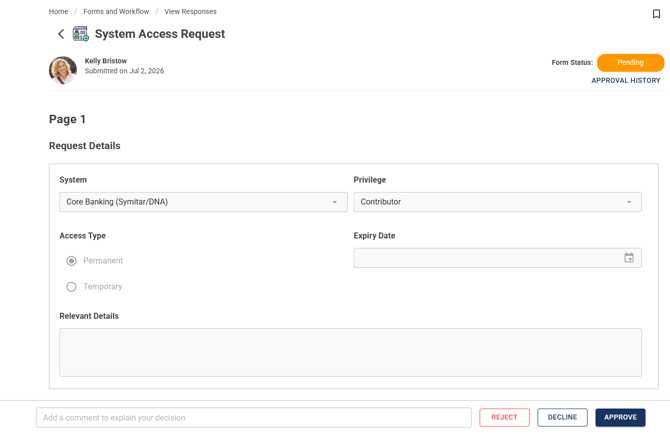
- Approvers can include a written comment alongside their decision to explain their reasoning or provide context to the submitter and other approvers in the workflow.
View Responses
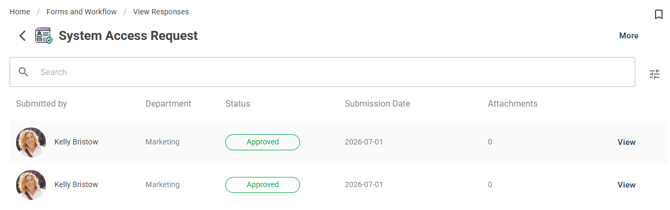
Responses Table
-
Customise Your Columns
-
Choose which fields appear as columns, reorder them, and rename them to match how your team talks about data.
-
- Search & Filter
- Search by keyword or filter by any field , status, submitter, date, or custom fields , to find exactly what you need fast.
Approvals & Actions
Real-time Notifications
-
Get notified the moment something changes , a new submission, a stage approval, or a rejection.