
Employee List
The Employee List Widget allows you to display a list of employees directly within your intranet.
You can customize which employees are displayed by Department, individual Employees, and additional filters. You can also choose how many employees to display, how they are sorted, and which employee information appears on each employee card.
To add the Employee List Widget:
Edit Current Page > Add Section > Add Employee List Widget
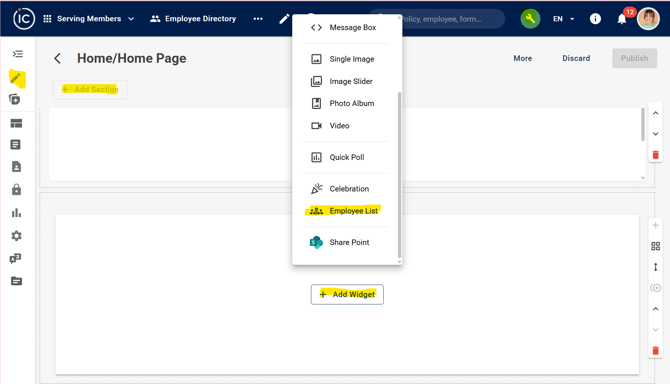
Configure the Employee List Widget
- Enter a Title for the widget.
- Choose whether to Show Header.
- Under List Type, select the type of employee list you want to display.
- Under Who to Display, select a Department or specific Employees, if desired.
- Click More Filters to apply additional employee filters.
- Under Number of Employees to Show, enter the number of employees to display.
- A maximum of 50 employees can be displayed.
- Under Sort by, select how the employees should be ordered.
- Click Edit Card View to customize the information displayed on each employee card.
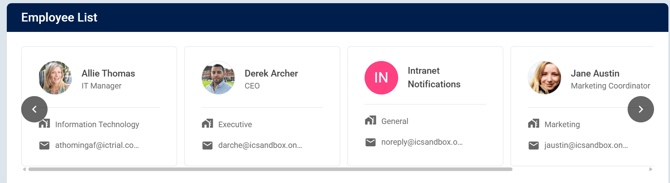
Edit Card View
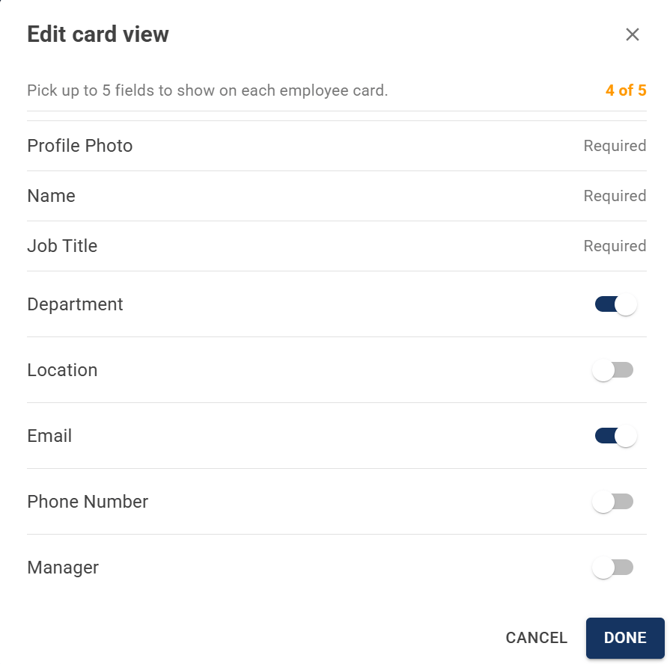
The Edit Card View settings allow you to choose which employee information is displayed on each employee card.
You can select up to 5 fields to display. Profile Photo, Name, and Job Title are required fields. Additional fields include:
- Department
- Location
- Phone Number
- Manager
Enable the fields you want to display and click Done to save your selections.