Documents is a specific type of App, or pre-built content library, ready for files to be added. Files are managed using a document repository, which organizes files using folders.
In this article
Read & Confirm and Review Content
App Settings
Instructions below is for the migrated Documents App from v2.0
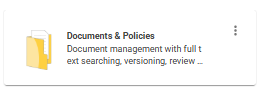
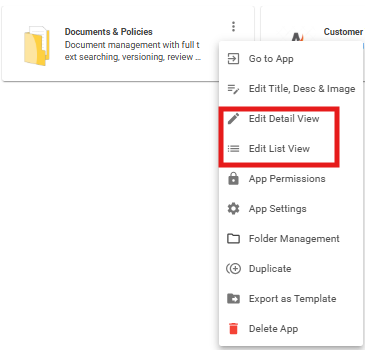
Settings for the Documents & Policies App are put in place by an intranet Admin, as for all Apps. App settings are accessed by clicking the three columns on the App card.
There will be some differences in the drop down menu you see based on how the Doc App was created. [Migrated from 2.0 vs Created new in 3.0]
More Options: (drop down here is mor extensive)
-
App Permission
Add, Edit & Delete App Permissions: Edit 'View Content', Add Content, Edit 'Other's Content' & Delete 'Other's Content'
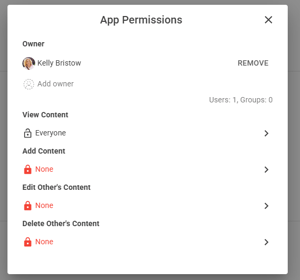
- Add, Edit & Delete App Permissions: Edit 'View Content', Add Content, Edit 'Other's Content' & Delete 'Other's Content'
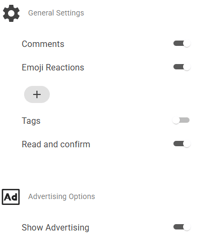
- App Settings: Toggle comments, emojis, Read & Confirm and Advertising Options
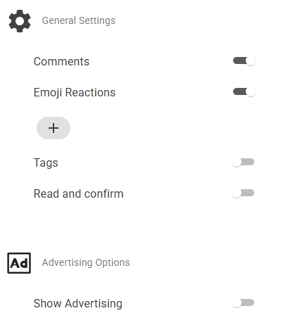
- Export App template: Customized App template can be exported and imported in a different site
- To import: Open Site Card > Apps > Create App from Template > Import Template > Selected downloaded template to import (.icapp file)
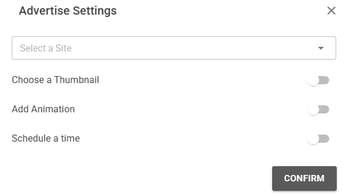
- Advertise items - Ensure Advertising Options has been turned on. Create New content, click publish and customize advertising pop up.
 >
> 
Example of new content advertised to the What's new feed widget: - New content

Example of updated content advertised to the What's new feed widget: - Updated content

Note: Only Documents apps which have been brought over using the Migration Tool from your previous intranet will have the options for layout and sorting of content within the App.
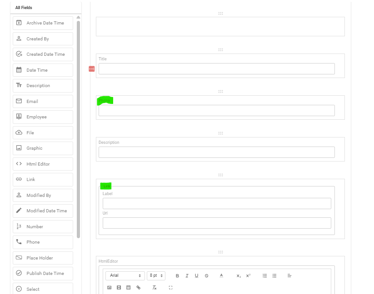
For Migrated Doc App: Click 'Edit Detail View' or 'Edit List View' to further customize. 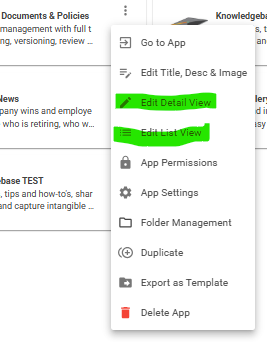
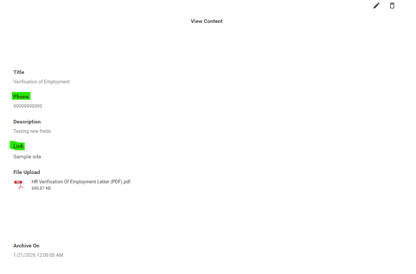
Detail View
Choose which field to include. Drag and drop the field to reposition it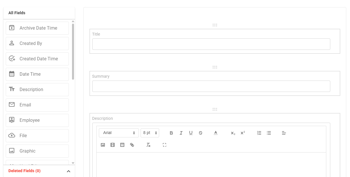
List View
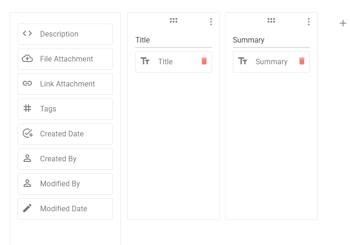
Read & Confirm and Review Content
Read & Confirm and Review Content are two functions which help keep documents and users up-to-date.
Read & Confirm
Read & Confirm is a function of the Documents and Policies App which allows for users to acknowledge that they've read a key document (e.g. harassment policy), so a manager can track at a glance if a group or specific staff have complied with the requirement. Read & Confirm allows a manager to track which staff members have read a specific required file and acknowledged that they've done so.
Click App options > App settings > Toggle on 'Read and Confirm'
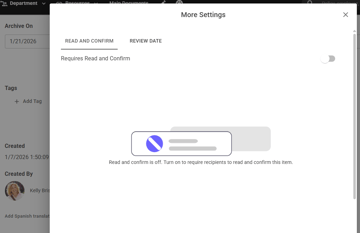
Publish content > Click More Settings on the content level > Turn on Read & Confirm
Want to see the feature in action? Check out our webinar recording here.
Review Content
The Review function of the Documents and Policies App allows for a reminder that a document or policy is due for a review to ensure its currency and accuracy. When a Review Content date is added to a file, the document's owner is automatically alerted that the document needs to be reviewed for accuracy and currency.
A common issue is for documents, policies, etc. to get added to a Document Repository and go stale because they were added and never reviewed. The Review On feature addresses this issue by giving a reminder to the document owner that it's time to review - and potentially update - their document.
Publish content > Click More Settings on the content level > Turn on Read & Confirm
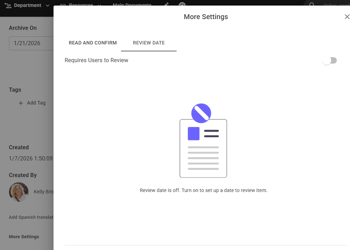
Archive content: (complete archiving system to be released)
Archive field is defaulted in the Docs App layout. To customize > Edit App Detail View > Remove 'Archive on' field or Make field required
Add Archive date on a content level before publishing
Multiple File Upload
Multiple file upload is a time saver for getting files into the intranet.
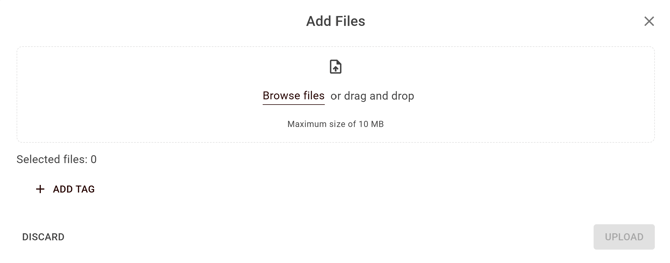
File Versioning
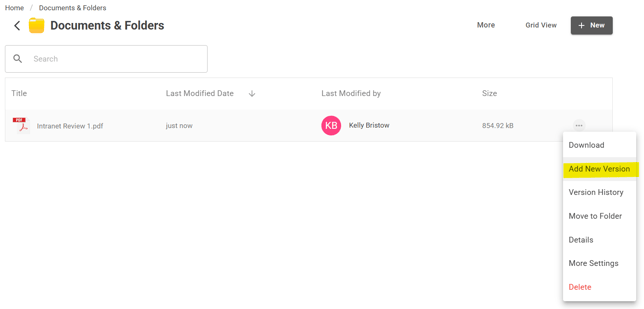
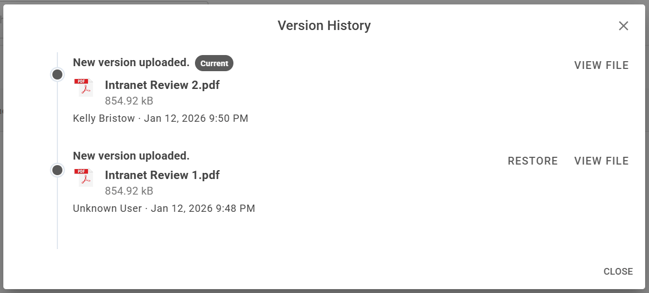
To start utilizing the File Versioning functionality, after a document is uploaded into the Documents app, you will see an option for Add New Version. Click Add New Version to upload a new version of the document. The new file will be set as the current document, and previous file uploads will be retained as versions.
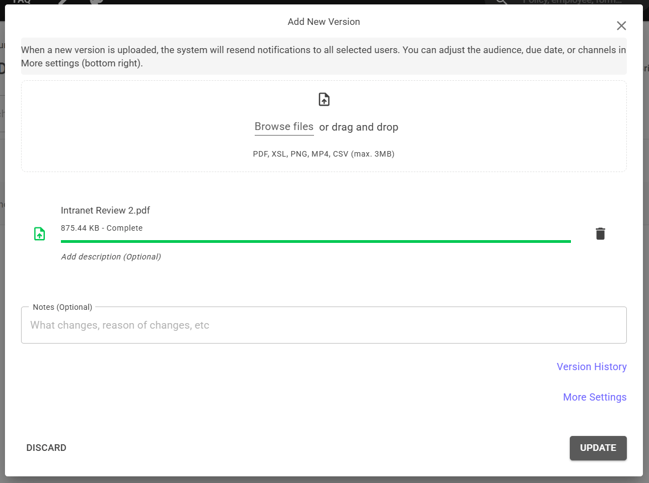
Once a new version is uploaded, click on Version History to view past versions and confirm which version is the current version.
Edit Content
The new Documents app is like a simple file manager and focuses on being a file upload application.
New 3.0 Doc App (Unable to add new fields or customize layout due to mobile compatibility for this new application. This is a simple file uploader) 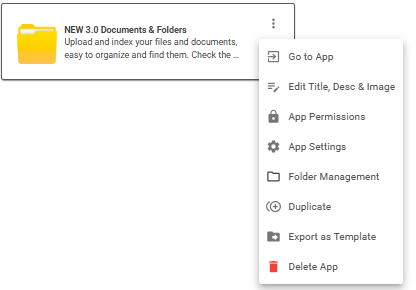
Available default fields for 3.0 Doc App: Title, Description, File Uploader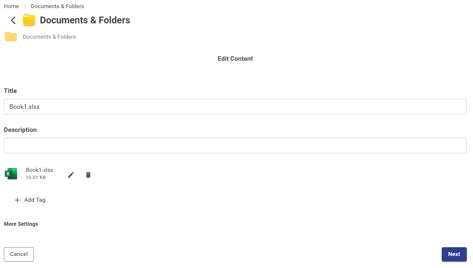
Note: Only Documents apps which have been brought over using the Migration Tool from the legacy intranet will have the options for adding and filling out custom additional fields.
Migrated Legacy Doc App from IC 2.0 to IC 3.0 (Able to add new fields and customize)